Claude Code Installation Guide for Beginners
For 021.Events Workshop Participants

This guide assumes you have never used a terminal before (or it’s been a while!) and do not have any development tools installed on your computer.
Required
A Claude subscription (minimum Claude Pro).
A computer where you have permission to install software. A company issued computer may not allow you to install software yourself.
What You’re Installing
Claude Code is a command-line tool that lets you work with Claude AI directly in your terminal. Before you can install it, you need Node.js (a JavaScript runtime that includes a tool called npm which installs packages).
Installation order:
Node.js (includes npm)
Claude Code
Quick Reference Card
To open the terminal on MacOS:
Command+Space bar → Type “Terminal” and open it
To open the terminal on Windows :
Win+X → PowerShell
With the terminal open:
Check what (if any) version of Node is installed
node --version
Check what (if any) version of npm (node package manager) is installed:
npm --versionnpm --version
Install Claude Code:
npm install -g @anthropic-ai/claude-code
Launch Claude Code:
claude
To get help while in Claude:
claude --help
To exit Claude:
Exit
Mac Instructions
Step 1: Open Terminal
Press Command (⌘) + Space to open Spotlight Search
Type Terminal
Press Enter
A window with a command prompt will open. This is where you’ll type commands.
Step 2: Check if Node.js is Already Installed
Type this command and press Enter:
node --versionIf you see a version number (like v20.10.0): Skip to Step 4.
If you see “command not found”: Continue to Step 3.
Step 3: Install Node.js (Mac)
Option A: Download Installer (Easiest)
Open your web browser
Go to:
https://nodejs.org
Click the LTS button (the green one that says “Recommended For Most Users”)
A
.pkgfile will downloadOpen the downloaded file
Follow the installation wizard (click Continue → Continue → Agree → Install)
Enter your Mac password when prompted
Click Close when complete
Option B: Using Homebrew (if you have it)
If you already have Homebrew installed, you can run:
brew install nodeStep 4: Verify Node.js Installation
Close your Terminal completely (Command + Q), then reopen it.
Type these commands one at a time, pressing Enter after each:
node --versionYou should see something like: v20.10.0 or v22.11.0
npm --versionYou should see something like: 10.2.0 or 10.9.0
If both commands show version numbers, you’re ready for Step 5.
Step 5: Install Claude Code
Type this command and press Enter:
npm install -g @anthropic-ai/claude-codeWait for the installation to complete. You may see some warnings—this is normal.
However, if you get an npm error, that this operation was rejected by your operating system, and you do have admin rights to install software (it’s your computer, not an employers):
sudo npm install -g @anthropic-ai/claude-codeYou will be prompted for your computer password (same as your Mac or Windows password when your computer boots up).
If this doesn’t work - you may need to restart your terminal. Close the terminal, and open it again. That should refresh the terminal with Node which was just installed, and then enable you to install Claude Code.
Step 6: Verify Claude Code Installation
Type this command and press Enter:
claude --versionYou should see a version number.
Again, if this doesn’t work - you may need to restart your terminal. Close the terminal, and open it again. That should refresh the terminal with Claude which was just installed, and then enable you start Claude Code.
Step 7: Launch Claude Code
Type:
claudeA browser window will open for authentication. Log in with your Claude account (requires a paid plan).
Step 7.5: Git
You may also get a window that asks if you wish to install git tools. Confirm “Yes” or “Install”. Git is a free, open source standard version control system.
Windows Instructions
Step 1: Open PowerShell
Press Windows key + X
Click Windows PowerShell or Terminal
Alternatively:
Press Windows key
Type PowerShell
Press Enter
Step 2: Check if Node.js is Already Installed
Type this command and press Enter:
node --versionIf you see a version number (like v20.10.0): Skip to Step 4.
If you see an error like “node is not recognized”: Continue to Step 3.
Step 3: Install Node.js (Windows)
Option A: Download Installer (Recommended)
Open your web browser
Go to:
https://nodejs.org
Click the LTS button (the green one that says “Recommended For Most Users”)
A
.msifile will downloadOpen the downloaded file
Follow the installation wizard:
Click Next
Accept the license agreement → Next
Keep the default installation path → Next
Keep default features selected → Next
Important: Check the box that says “Automatically install the necessary tools” → Next
Click Install
Click Finish
Option B: Using winget (Windows Package Manager)
If you have winget available, run:
winget install OpenJS.NodeJS.LTSStep 4: Verify Node.js Installation
Close PowerShell completely, then reopen it (this is important—the PATH needs to refresh).
Type these commands one at a time, pressing Enter after each:
node --versionYou should see something like: v20.10.0
npm --versionYou should see something like: 10.2.0
If both commands show version numbers, you’re ready for Step 5.
Step 5: Install Claude Code
Type this command and press Enter:
npm install -g @anthropic-ai/claude-codeWait for the installation to complete. You may see some warnings—this is normal.
Step 6: Verify Claude Code Installation
Type this command and press Enter:
claude --versionYou should see a version number.
Step 7: Launch Claude Code
Type:
claudeA browser window will open for authentication. Log in with your Claude account (requires a paid plan).
First Time Use
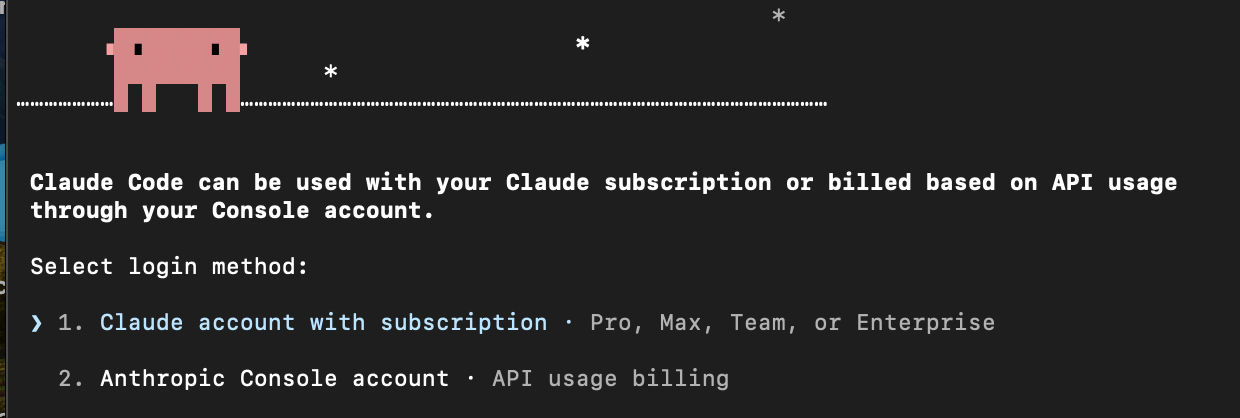
After installing Claude on the terminal, and running “Claude” for the first time, you will get the following screens:
Now that Claude is installed, you need to log in. Claude allows you to use your subscription for log in as an alternative to creating and paying for a separate API key. Click through the account with subscription option.
A browser link will be provided - either your browser will automatically open on a new tab with the below, or copy and paste the URL from the terminal into a new browser tab.
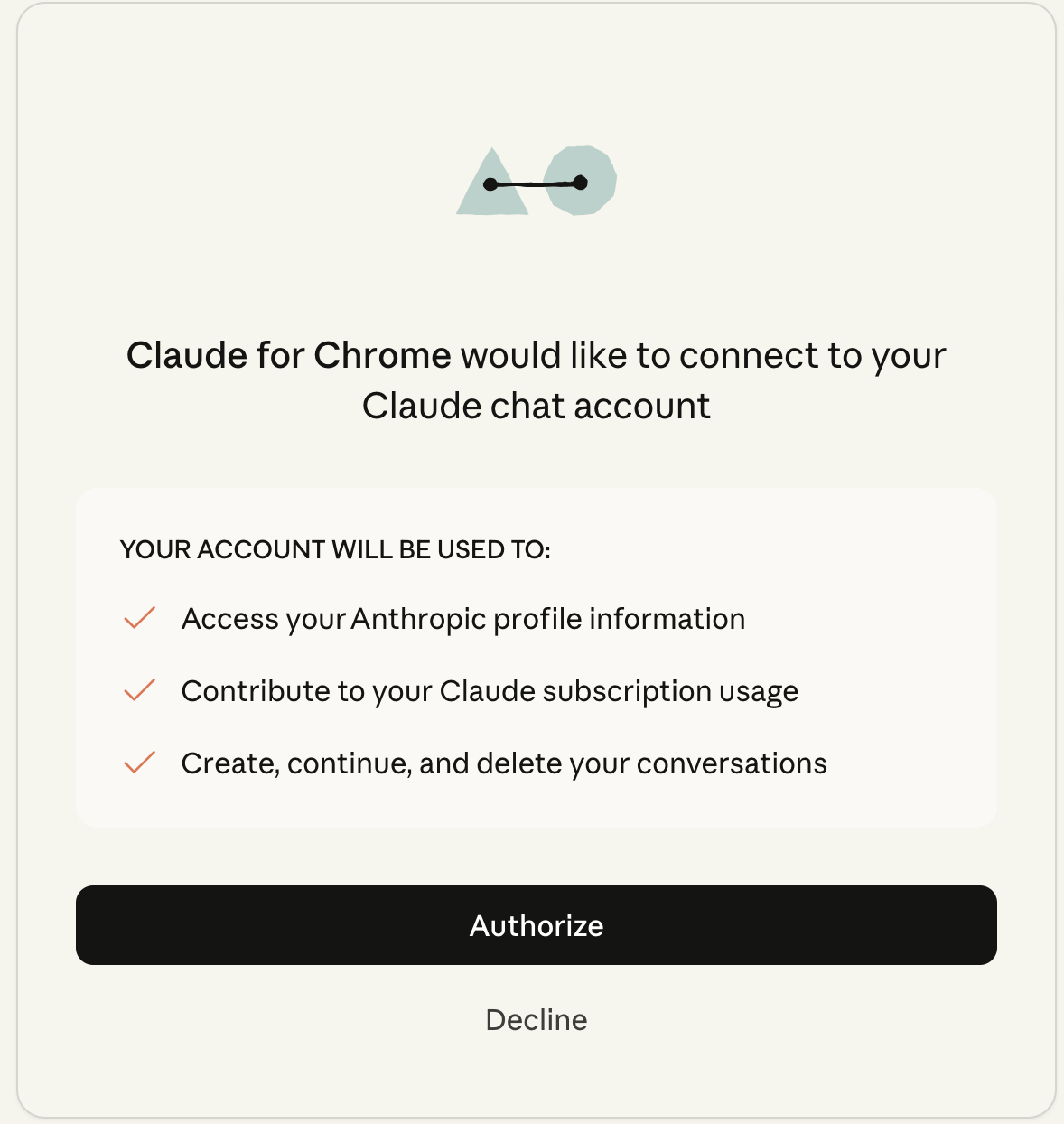
After you log in to the same account as your Claude subscription, you will get an authentication code. Paste this back into the terminal if it doesn’t process automatically.

Click through the remaining options, and you’re all done!
Reminder - type “exit” to exit from Claude Code back to your terminal.
ALWAYS use Claude Code from a file folder rather than working off your root folder.
Troubleshooting Common Issues
Issue: “npm: command not found” (Mac) or “npm is not recognized” (Windows)
Cause: Terminal/PowerShell was open during Node.js installation and hasn’t refreshed.
Fix:
Close Terminal/PowerShell completely
Reopen it
Try
npm --versionagain
Issue: Permission errors during npm install (Mac)
Error message: EACCES: permission denied
Fix: Run the install with sudo:
sudo npm install -g @anthropic-ai/claude-codeEnter your Mac password when prompted (characters won’t show as you type—this is normal).
Issue: Permission errors during npm install (Windows)
Fix: Run PowerShell as Administrator:
Press Windows key
Type PowerShell
Right-click on Windows PowerShell
Select Run as administrator
Click Yes on the prompt
Try the install command again
Issue: “curl: command not found” (Mac)
This error occurs if you tried a different installation method. The npm method above doesn’t require curl.
If you need curl for something else, install it via Homebrew:
/bin/bash -c “$(curl -fsSL https://raw.githubusercontent.com/Homebrew/install/HEAD/install.sh)”
brew install curl
Issue: Claude Code installs but “claude” command not found
Cause: npm global bin directory not in PATH.
Mac Fix:
export PATH=”$PATH:$(npm config get prefix)/bin”To make permanent, add to your shell config:
echo ‘export PATH=”$PATH:$(npm config get prefix)/bin”’ >> ~/.zshrc
source ~/.zshrc
Windows Fix: The npm global directory should be added automatically. If not:
Press Windows key + R
Type
sysdm.cpland press EnterClick Advanced tab → Environment Variables
Under “User variables”, find Path and click Edit
Click New and add:
%USERPROFILE%\AppData\Roaming\npmClick OK on all dialogs
Close and reopen PowerShell
Issue: Authentication fails or browser doesn’t open
Fix:
Make sure you have a paid Claude account ($20/month minimum)
Try running
claudeagainIf browser doesn’t open automatically, look in the terminal for a URL to copy/paste
Issue: Network/firewall blocking installation
Symptoms: Timeout errors, connection refused
Fix:
Try a different network (personal hotspot from phone)
If on corporate network, ask IT about npm registry access
Try setting npm to use https:
npm config set registry https://registry.npmjs.org/What Success Looks Like
After successful installation, when you type claude and press Enter, you should see:
A message about authentication
A browser window opening to log in
After login, you’ll return to terminal with Claude Code ready
You can then navigate to any project folder and use Claude Code to assist with development.
Last updated: December 2025 For 021.Events workshops